Platforms |
Platforms
To prepare a project for the target platform, you need to create a build in the editor. You can also run the project without building it first while still having access to the debugger.
Alternatively, to build on Windows, simply copy the Assets and Binaries subfolders from the Project folder.
 ContentsPlatform limitations
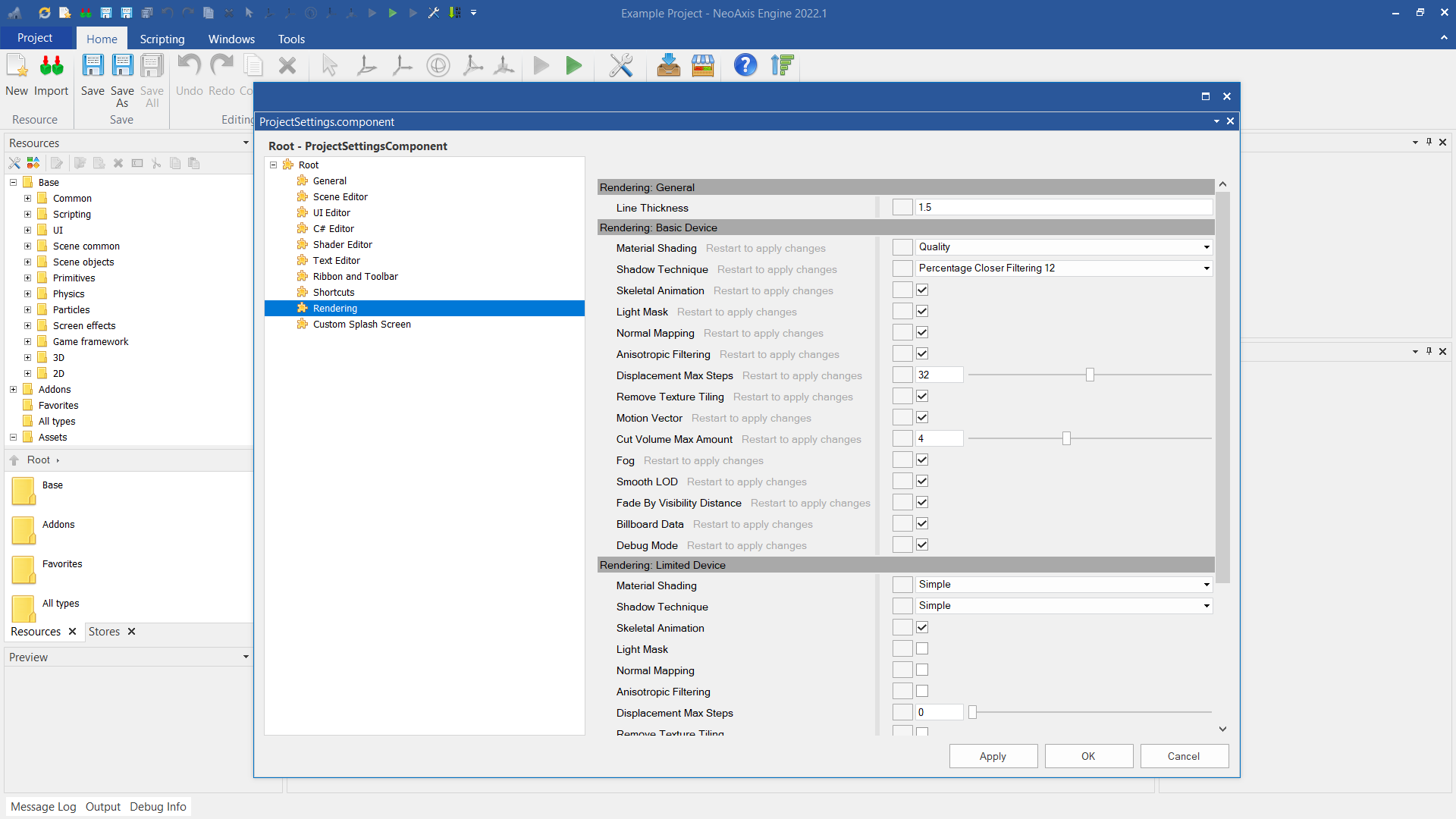
On mobile devices, some graphics features are not supported, such as voxel LOD, deferred shading, decals, advanced material blending parameters, ambient occlusion, reflections, and motion blur.
For mobile devices, many graphics features are disabled by default for optimization purposes. These features can be configured in the Project Settings and in the Rendering Pipeline for the scene.
 Preparing
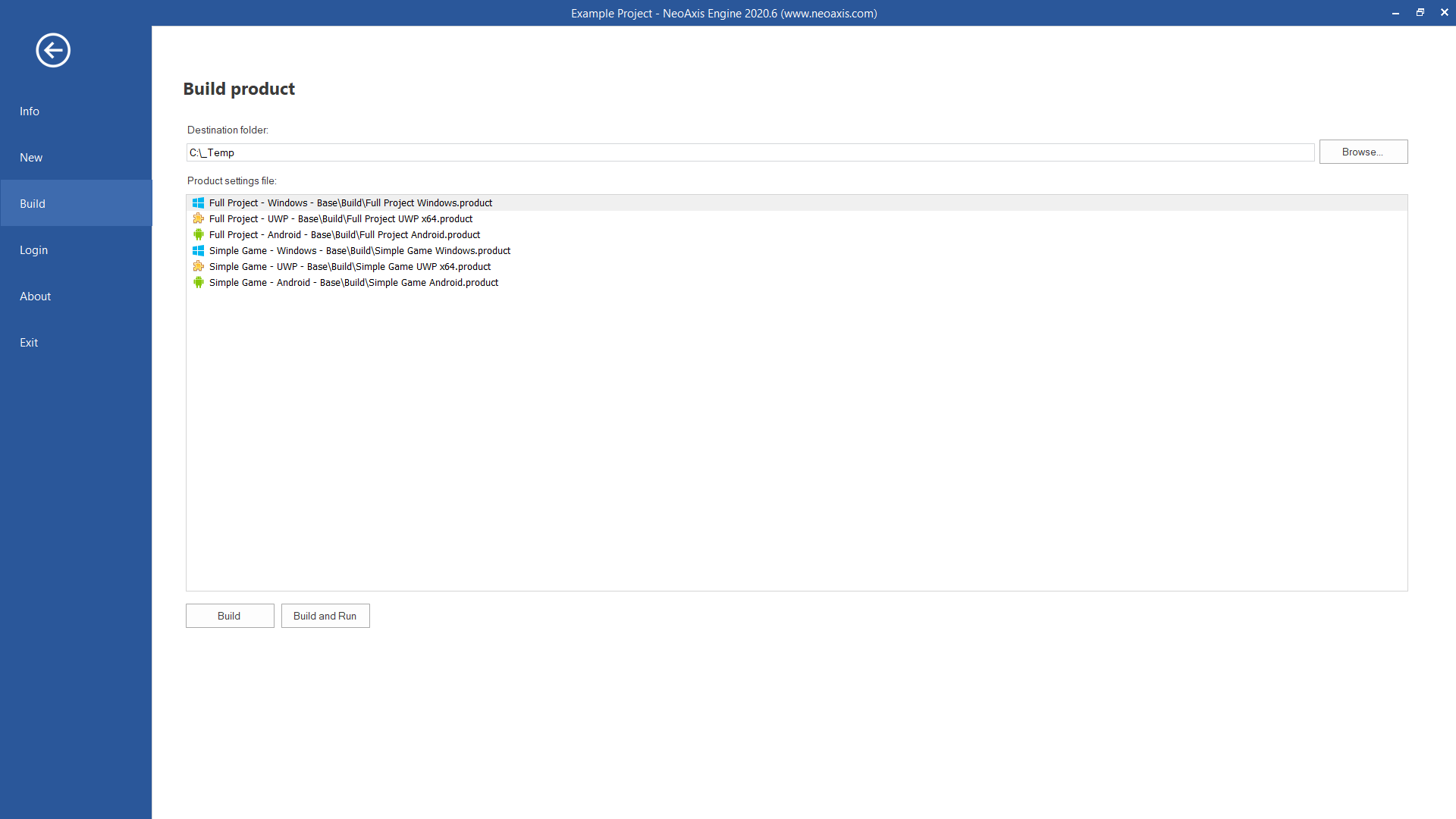
The standard way to create a project build is available from the Project Menu.
 Build configurations
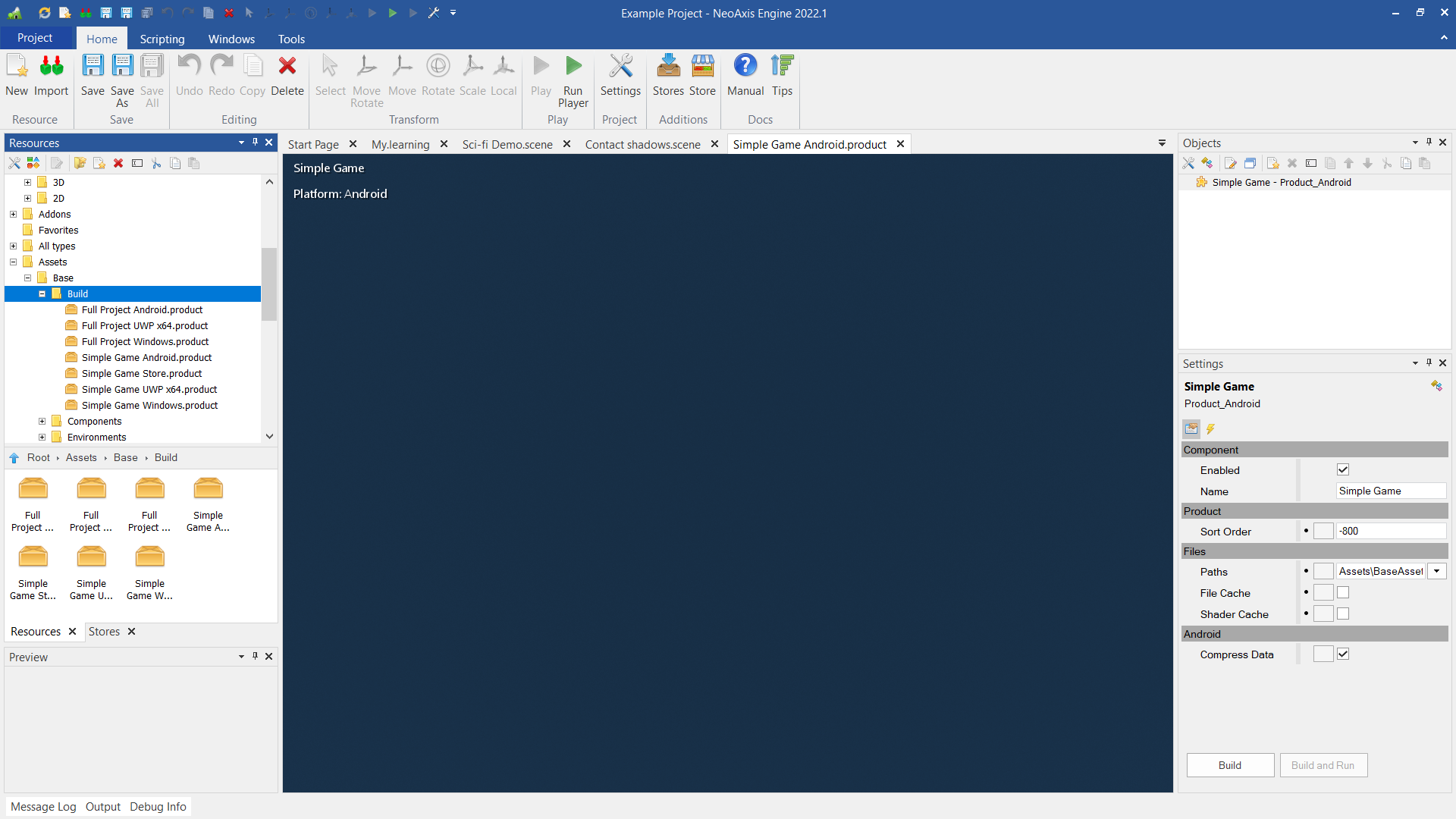
To build the project, use one of the build configurations. A build configuration is a special file containing general settings, the required project folders, and settings for optional components. The basic build configurations are located in the "Base\Build" folder.
You can create your own build configurations. The easiest way to create a custom configuration is to make a copy of an existing one.
 Windows
Build for Windows 10+ x64.
Requirements:
- Visual Studio 2026 Community or an equivalent IDE.
- The native code has already been precompiled.
- Use NeoAxis.Managed.sln with the Debug-Windows-x64 or Release-Windows-x64 configuration to compile the managed assemblies and run with the debugger.
To compile the native code:
- Use NeoAxis.Windows.All.sln to build the entire engine with the native code.
- Use NeoAxis.Windows.Native.sln to build the native code.
AndroidBuild for Android 13+ ARM64 and ARM32.
Requirements:
- Visual Studio 2026 Community or an equivalent IDE.
There are two ways to launch the project on the device:
- 1. You can run the project in the debugger without building. Open and run "Sources\NeoAxis.Android.sln" or "Project\Build.Android.sln" in Visual Studio 2026. In the NeoAxis.Player.Android project of the solution, you need to select your build configuration. Go to Build Events settings, specify the demanded '.product' file.
- 2. For the final build, use the Project Menu of the editor, which is described above. When the project is prepared, open the destination folder and compile Build.Android.sln.
ARM32
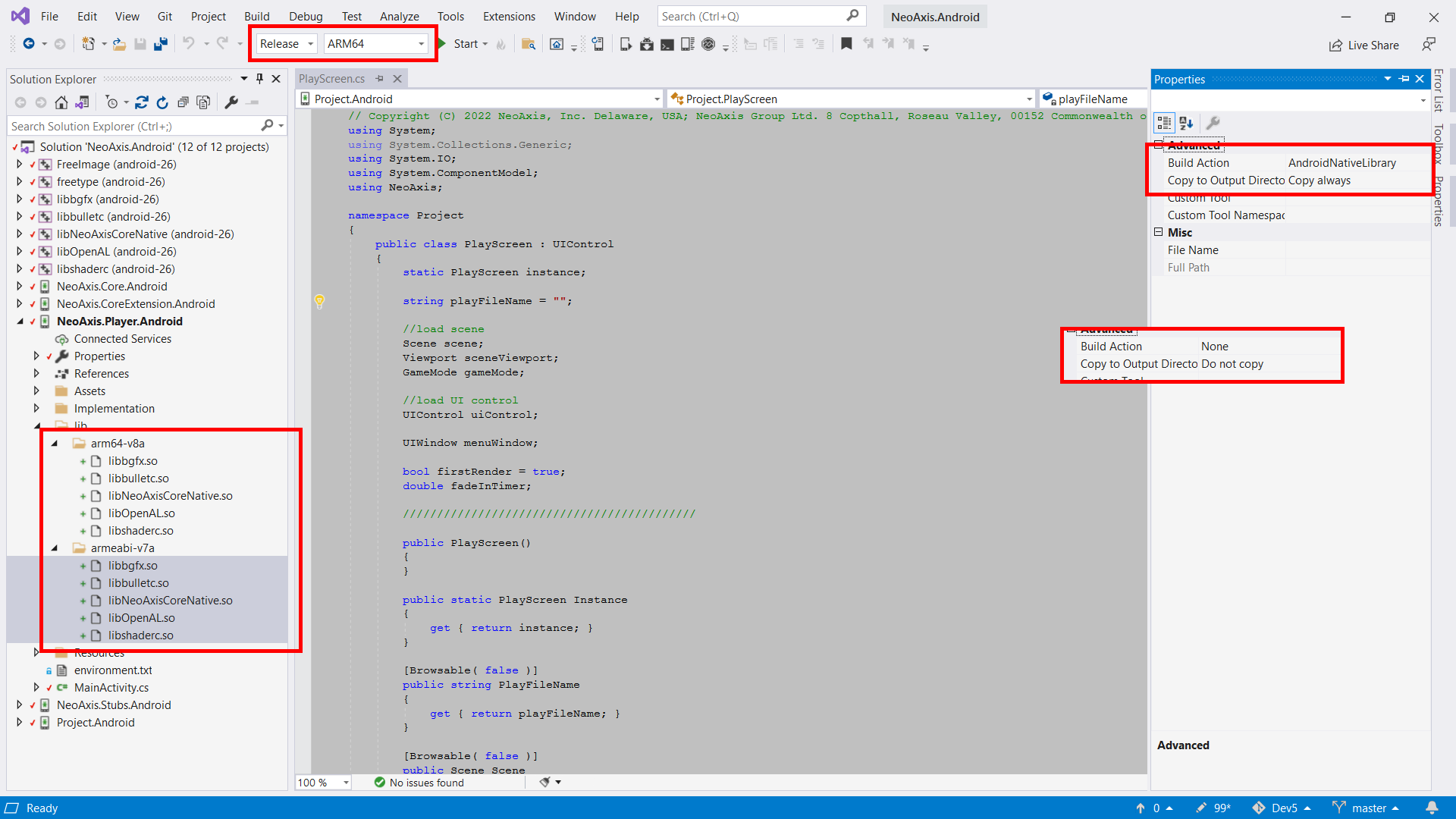
By default, the engine is configured to compile for ARM64. To compile for 32-bit Android Go edition, need to do next things:
- 1. Switch compilation to ARM32.
- 2. Build native code for ARM32.
- 3. Update configuration for native dynamic link libraries. Need update of "Build Action" and "Copy to Output Directory" for 'so' files.
 Linux
LinuxBuild for Linux x64.
Requirements:
- Visual Studio 2026 Community or an equivalent IDE.
- Install Windows Subsystem for Linux (WSL).
- The native code has already been precompiled.
- Use NeoAxis.Managed.sln with the Debug-Linux-x64 or Release-Linux-x64 configuration to compile the managed assemblies.
To compile the native code:
- Use NeoAxis.Linux.Native.sln to build the native code.
UWPBuild for UWP x64 (Universal Windows, Xbox).
Requirements:
- Visual Studio 2026 Community or an equivalent IDE.
- Use NeoAxis.UWP.sln to compile the managed assemblies and run with the debugger. Use x64 configuration.
- The package compiles to "C:\_TempAppX" directory.
WebBuild for Web.
Requirements:
- Visual Studio 2026 Community or an equivalent IDE.
- The native code has already been precompiled.
- Use NeoAxis.Web.sln to compile and to run in the debugger. Use Build Events to configure what '.product' to run with the debugger.
To compile the native code:
- Prepare Emscripten SDK.
- Use NeoAxis.Web.Native.cmd or NeoAxis.Web.Native.Debug.cmd to build the native code.
Install to C:\emsdk. Verify path: C:\emsdk\emsdk\python\3.13.3_64bit\python.exe
To compile .NET 10 projects, use Emscripten 3.1.56 exactly.
C:\emsdk\emsdk\emsdk.bat install 3.1.56
C:\emsdk\emsdk\emsdk.bat activate 3.1.56
PATH environment variables are not needed.
macOSBuild for macOS.
Requirements:
- Visual Studio 2026 Community or an equivalent IDE.
- Windows and macOS computers to compile the native code.
- The native code has already been precompiled.
- Use NeoAxis.Managed.sln with the Debug-macOS or Release-macOS configuration to compile the managed assemblies.
To compile the native code:
- Configure the macOS computer with allow access by IP address.
- On macOS, run "Project\Binaries\NeoAxis.Internal\Platforms\macOS\CommandLineTools\CommandLineTools" with the following parameters: "./CommandLineTools -platformServer 12345 -synchronizeFilesEnable True". For more information, see "Project\Binaries\NeoAxis.Internal\Platforms\macOS\CommandLineTools\Readme.txt".
- On Windows, change the macOS computer’s IP address in NeoAxis.macOS.Native.cmd and NeoAxis.macOS.Native.Debug.cmd. Alternatively, make copies of these files.
- Run NeoAxis.macOS.Native.cmd or NeoAxis.macOS.Native.Debug.cmd to compile the native code.
To run the project on macOS from Windows:
- On macOS, run "Project\Binaries\NeoAxis.Internal\Platforms\macOS\CommandLineTools\CommandLineTools" with the following parameters: "./CommandLineTools -platformServer 12345 -synchronizeFilesEnable True". For more information, see "Project\Binaries\NeoAxis.Internal\Platforms\macOS\CommandLineTools\Readme.txt".
- On Windows, change the macOS computer’s IP address in NeoAxis.macOS.Synchronize.cmd. Alternatively, make a copy of the file.
- Use NeoAxis.macOS.Synchronize.cmd to synchronize files without copying them manually. On macOS, the files will be copied to the directory "Documents/NeoAxisPlatformServer/macOS".
iOSBuild for iOS Simulator and real device.
Requirements:
- Visual Studio 2026 Community or an equivalent IDE.
- Windows and macOS computers to compile the native code.
- The native code has already been precompiled.
- Use NeoAxis.iOS.sln to compile and to run with the debugger.
To compile the native code:
- Configure the macOS computer with allow access by IP address.
- On macOS, run "Project\Binaries\NeoAxis.Internal\Platforms\macOS\CommandLineTools\CommandLineTools" with the following parameters: "./CommandLineTools -platformServer 12345 -synchronizeFilesEnable True". For more information, see "Project\Binaries\NeoAxis.Internal\Platforms\macOS\CommandLineTools\Readme.txt".
- On Windows, change the macOS computer’s IP address in NeoAxis.iOS.Native.cmd and NeoAxis.iOS.Native.Simulator.cmd. Alternatively, make copies of these files.
- Run NeoAxis.iOS.Native.cmd or NeoAxis.iOS.Native.Simulator.cmd to compile the native code.
See also